Introducing the SheetBest Timesheets Template

Customer support keeps teaching us the same lesson: people do not always come to SheetBest looking for “an API” in the abstract.
They come with a workflow already living in a spreadsheet. They have a feedback form, an inventory list, a hiring board, or a client tracker. What they need is a concrete starting point that already matches the shape of the work.
That is why we built the new Timesheets template.
Why Timesheets
Timesheets are one of those spreadsheet workflows that show up everywhere.
Agencies track client work. Consultants separate billable and non-billable time. Internal teams need approval status before hours move into payroll or reporting. Freelancers want a simple way to log work without adopting a full project management suite.
The data model is familiar:
- Who did the work
- Which client and project it belongs to
- When the work happened
- How many hours it took
- Whether it is billable
- Whether someone approved it
That is exactly the kind of workflow where Google Sheets works well as the source of truth, and SheetBest makes the sheet useful outside the spreadsheet.
What The Template Includes
The Timesheets template is a working web page backed by a Google Sheet and the SheetBest API. It is not just a mockup.
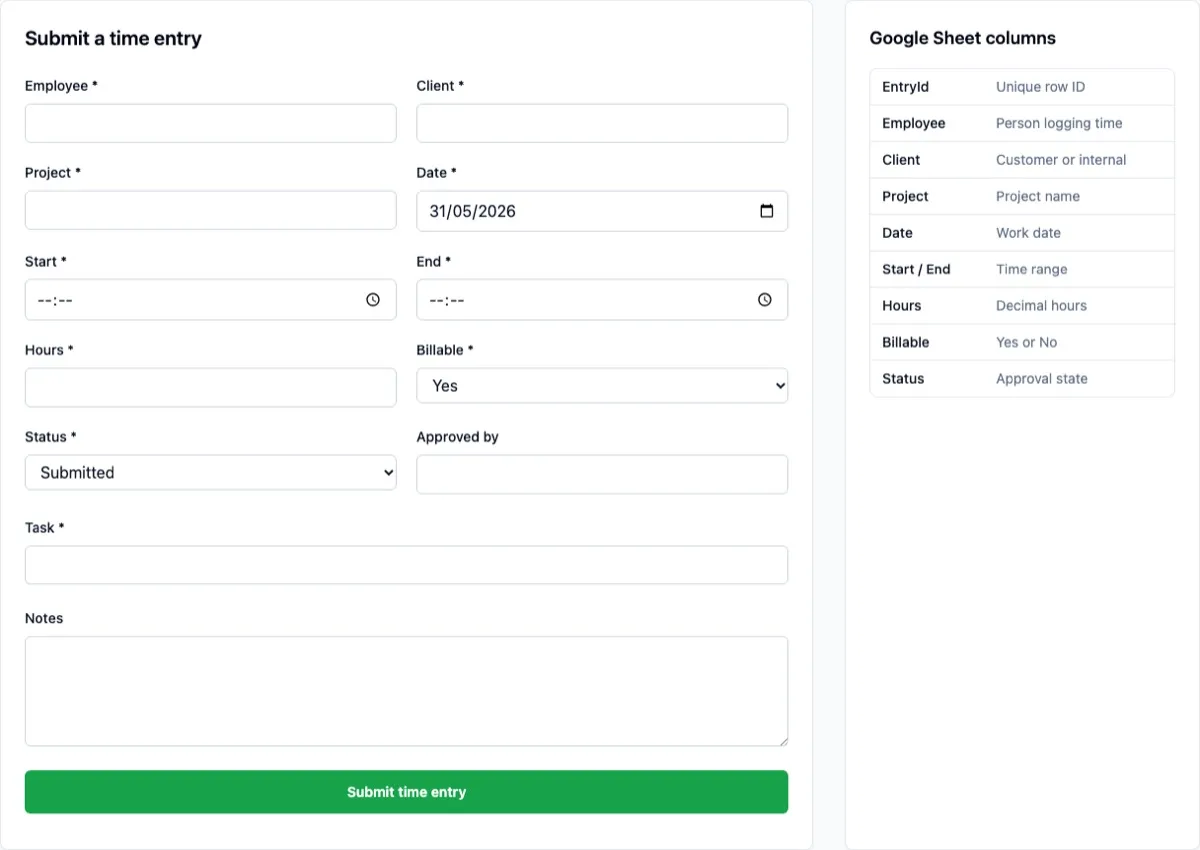
The template includes:
- A timesheet table with employee, client, project, date, task, hours, and notes
- Search across people, clients, projects, tasks, and notes
- Filters for approval status and billable work
- Summary metrics for total hours, billable hours, submitted entries, and approved entries
- A time entry form that writes new rows back to Google Sheets
- Generated entry IDs and submission timestamps
- Realistic sample data you can inspect, copy, or replace
You can open the live template here: try the Timesheets template.
A Real Sheet, Not Demo Theater
We also published the sample spreadsheet behind the template so you can see the structure directly.
The Sheet has a Timesheets tab with columns for EntryId, Employee, Client, Project, Date, Start, End, Hours, Task, Notes, Billable, Status, ApprovedBy, and SubmittedAt.
You can inspect the public sample Google Sheet or call the live endpoint directly:
curl https://api.sheetbest.com/sheets/1f5b6dbe-51eb-41e0-a452-85e4d3ba3c8f/tabs/TimesheetsThe response is standard JSON. Each spreadsheet row becomes an object, and each column header becomes a property.
That means you can start with the template, then connect the same data to your own dashboard, approval workflow, internal tool, or reporting script.
How To Use It
The fastest path is:
- Open the Timesheets template.
- Copy the sample Google Sheet.
- Connect your copied sheet in SheetBest.
- Replace the demo endpoint in the template with your own SheetBest endpoint.
The source code is open too: view the Timesheets template on GitHub.
If you do not have a SheetBest account yet, start your 30-day free trial. No credit card required. Paste your Google Sheet URL, get an API endpoint, and point the template at your own data.
Why This Fits SheetBest
SheetBest is often described as a way to turn Google Sheets into a REST API. That is true, but it is only part of the job.
The larger job is helping people ship practical tools from data they already understand.
Templates make that easier. They give you the schema, the interface, the API wiring, and the first working version. You still own the spreadsheet. You still control the workflow. You just start closer to the finish line.
Timesheets is the next step in that direction: a small, useful template for a common business workflow that already belongs in a spreadsheet.
Try the Timesheets template, inspect the sample Sheet, or start a SheetBest trial and connect your own timesheet in under a minute.